
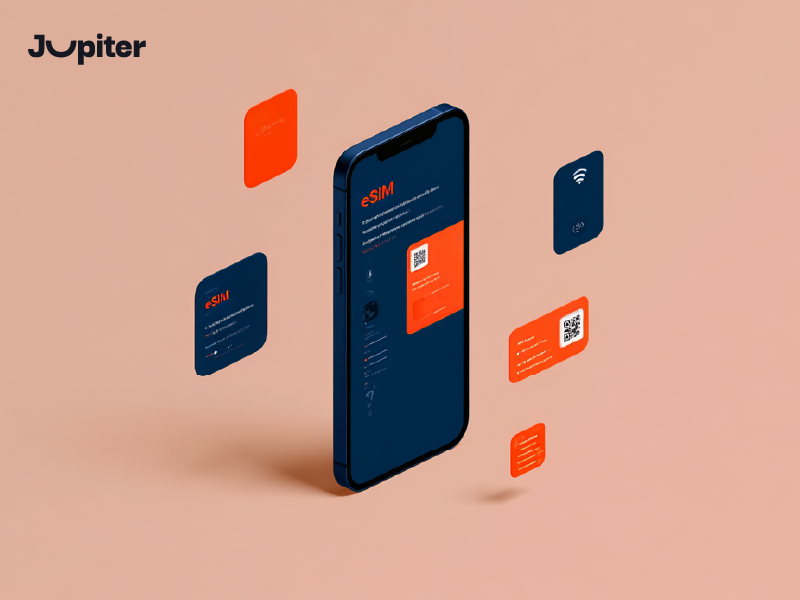
The method of activating an eSIM on iPhone has become easier than ever today, as there is no longer a need for a physical SIM card or complicated steps to activate your line or data plan. Now you can set up an eSIM on your iPhone within just a few minutes and completely digitally, giving you a faster and more flexible connectivity experience whether for travel or daily use.
With Jupiter eSIM services, you can activate your eSIM on iPhone quickly and easily, and start using the internet immediately without any complications, enjoying a stable and flexible connection wherever you are.
How to Activate eSIM on iPhone Step by Step
Activating an eSIM on iPhone is now a quick and simple process, allowing you to set it up within minutes without needing a physical SIM card. This provides a flexible connectivity experience, especially when traveling or using multiple lines on the same device.
📱 Open Phone Settings
前往 设置 on your iPhone, then navigate to 细胞 or “Mobile Data”.
➕ Add a New Cellular Plan
Tap on 添加 eSIM or “Add Cellular Plan”, then choose your activation method either via QR Code or manual entry.
📷 Scan QR Code or Enter Details Manually
If a QR Code is available, scan it using your phone camera. Otherwise, you can manually enter activation details such as SM-DP+ address and Activation Code.
⏳ Wait for Activation
After entering the details, wait a few seconds while the eSIM profile is downloaded and activated on your device.
📶 Select eSIM as Data Line
Once activated, you can choose the eSIM as your primary data line or use it alongside your main SIM card easily.
🚀 Start Using
Once the network appears, you can start using internet and calls normally without any additional setup.
Also learn about: How to Activate eSIM Manually Step-by-Step
Stay connected everywhere you travel with instant eSIM activation and smooth internet access on all your compatible devices.
Setting Up eSIM on iPhone in Minutes

Setting up eSIM on iPhone is now a simple and fast process that can be completed within minutes without needing a physical SIM card or visiting any store. This technology gives you great flexibility to use multiple lines on the same device easily.
📱 Open iPhone Settings
Start by opening 设置 then go to 细胞 or “Mobile Data” to access network settings.
➕ Add a New Cellular Plan
Tap on 添加 eSIM or “Add Cellular Plan”, then choose your preferred activation method via QR Code or manual entry.
📷 Scan QR Code or Enter Details
Scan the QR Code provided by your carrier, or enter activation details manually if required, such as SM-DP+ and Activation Code.
⏳ Wait for Activation to Complete
Wait a few moments while the iPhone downloads and activates the eSIM profile automatically.
📶 Choose Data Line
After activation, you can set the eSIM as your main data line or use it alongside your primary SIM depending on your needs.
🚀 Start Using Immediately
Once setup is complete and the network appears, you can browse the internet and make calls without any extra steps.
Also learn about: Esim new and easy way to connect to the internet
Switch to eSIM today and enjoy a smarter, faster, and more flexible way to manage your mobile data wherever you go.
Requirements for Activating eSIM on iPhone
Before activating an eSIM on iPhone, there are several essential requirements that must be met to ensure a smooth setup process and stable connectivity.
📱 eSIM-Compatible iPhone
Make sure your device supports eSIM technology, such as iPhone XS and later models, as older devices may not support this feature.
🌐 Internet Connection During Setup
A stable internet connection (Wi-Fi or mobile data) is required during activation to download the eSIM profile.
📩 Activation Details from Provider
You will need a QR Code or manual activation details such as SM-DP+ address and Activation Code provided by your eSIM provider.
⚙️ Updated iOS Version
It is recommended to keep your iPhone updated to the latest iOS version for better compatibility and smoother activation.
🔓 Access to Cellular Settings
Ensure you can access Cellular / Mobile Data settings to add a new cellular plan.
🚀 Ready eSIM Plan
You must have already purchased an active eSIM plan from a trusted provider before entering activation details.
Also learn about: Buy eSIM Card from Jupiter eSIM
Activate your eSIM now and stay connected anywhere in the world with fast, secure, and reliable mobile internet access.
Fixing Common eSIM Activation Issues on iPhone
Some users may encounter issues while activating eSIM on iPhone, but most of these problems can be easily resolved with simple steps and correct settings.
📶 No Network After Activation
If no signal appears, ensure Cellular Data is enabled and the eSIM is selected as the active line. Restarting the device may also help.
📷 QR Code Not Working
If scanning the QR Code fails, make sure the camera is working properly or use the manual activation method instead.
⚠️ Error During eSIM Setup
Check your internet connection and ensure all activation details are entered correctly without errors.
🔄 eSIM Not Activating
Try restarting your phone or re-adding the eSIM, and make sure your iOS is updated to the latest version.
📱 eSIM Option Not Showing
If the eSIM option does not appear, your device may not support it or may require a system update or network reset.
🌍 Issues While Traveling
If connectivity stops while traveling, ensure Data Roaming is enabled and the correct network is selected.
Also learn about: Transfer eSIM Easily Step by Step
Activate your eSIM now and stay connected anywhere in the world with fast, secure, and reliable mobile internet access.
Add a Second eSIM on iPhone Easily
iPhone users can now easily add a second eSIM, giving more flexibility to manage multiple numbers or data plans on the same device without a physical SIM card.
📱 Open Settings
前往 设置 then open 细胞 or “Mobile Data”.
➕ Add New eSIM
轻敲 添加 eSIM or “Add Cellular Plan”, then choose QR Code or manual entry.
📷 Scan or Enter Details
Scan the QR Code or enter SM-DP+ and Activation Code manually if needed.
🔄 Label Your Plans
You can label each line (Personal, Work, Travel) for easier management.
📶 Choose Data Line
Select which eSIM will be used for mobile data or calls based on your preference.
🚀 Use Two Lines Simultaneously
iPhone supports dual active lines, allowing you to stay connected on two numbers at the same time.
Activate your eSIM now and stay connected anywhere in the world with fast, secure, and reliable mobile internet access.
How to Use Multiple Numbers on iPhone via eSIM
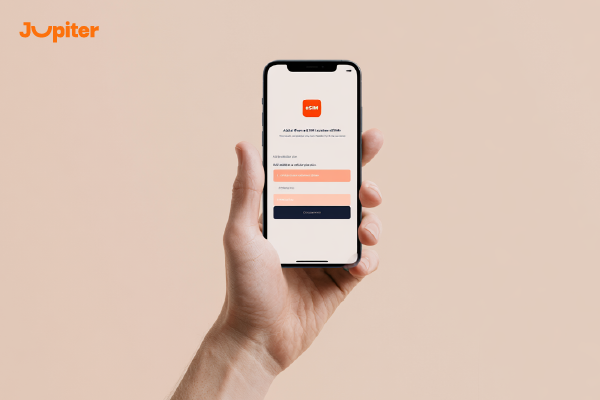
You can now use multiple numbers on iPhone easily using eSIM technology, allowing you to separate work and personal life or use a travel number without needing extra physical SIM cards.
📱 Add Multiple eSIMs
前往 设置 then 细胞, and tap 添加 eSIM to add new numbers via QR Code or manual entry.
🔄 Switch Between Lines
You can switch between numbers easily from settings or directly when making calls or sending messages.
📶 Assign Data & Calls
You can assign one line for calls and another for data usage depending on your needs.
🏷️ Label Your Lines
Label each line (Work, Personal, Travel) for easier identification and management.
🌍 Use a Line While Traveling
Keep your main number active while using eSIM for data abroad, saving roaming costs.
Get Your eSIM today and enjoy instant activation within minutes without any physical SIM card or complicated setup process.